
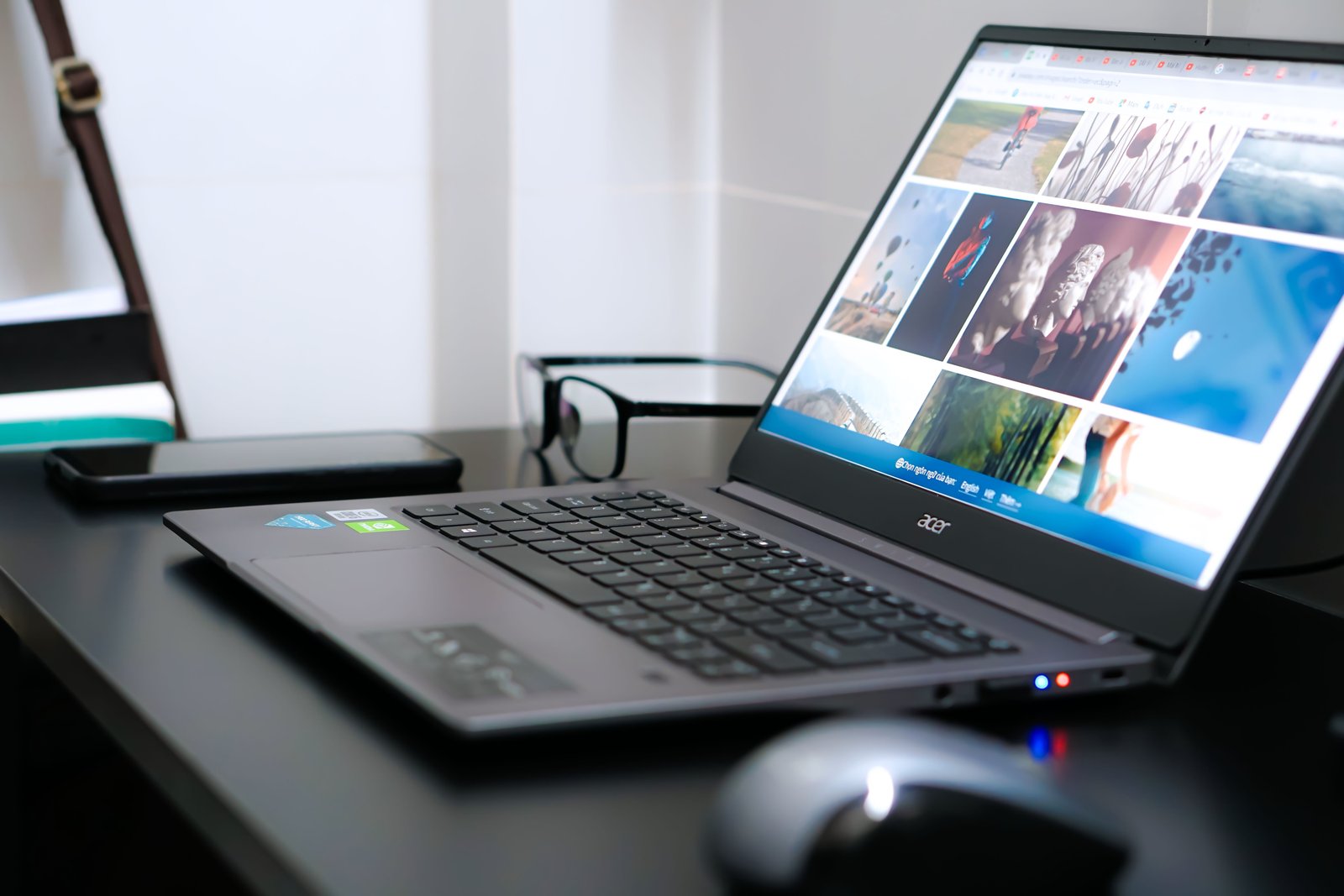
Laptops have become an essential part of everyday life. Whether you are a student attending online classes, a professional working remotely, a gamer enjoying your favorite titles, or simply someone browsing the internet, choosing and using the right laptop can make a big difference.
However, with so many brands, processors, RAM options, storage types, and screen sizes available, understanding how laptops work can feel confusing for beginners. This complete guide explains everything step by step, from choosing your first laptop to maintaining it and improving its performance over time.
By the end of this guide, you will have a better understanding of how laptops work and how to optimize their performance.
What Is a Laptop and How Does It Work?
A laptop is a portable computer that combines essential components into one compact device. Unlike a desktop computer, a laptop includes a built-in screen, keyboard, battery, speakers, and touchpad.
The main components include:
Processor (CPU), RAM, Storage (SSD or HDD), Graphics processor (GPU)
Display, battery, motherboard, cooling system. These components work together to run applications, process information, display images, and handle everyday tasks. Understanding these basic parts is the first step toward learning how to choose and maintain a laptop.
Step 1: Choose the Right Type of Laptop
Before buying a laptop, think about what you will use it for. Not everyone needs an expensive gaming or professional workstation.
Laptops for Students
Students usually need a lightweight laptop with good battery life, reliable performance, and enough storage for assignments and online learning.
A laptop with 8GB RAM and an SSD is generally a good starting point for everyday educational tasks.
Laptops for Office Work
Office users should focus on a comfortable keyboard, reliable processor, good battery life, and sufficient RAM for multitasking.
Tasks may include:
- Microsoft Office
- Video meetings
- Web browsing
- Spreadsheets
- Gaming Laptops
Gaming laptops require more powerful hardware. A dedicated graphics card, fast processor, sufficient RAM, and an effective cooling system are important for smooth gaming.
Laptops for Creative Work
Video editing, graphic design, and photo editing often require more processing power and memory. A high-quality display can also be important for creative professionals.
Step 2: Understand Laptop Specifications
One of the most important parts of learning about laptops is understanding specifications.
Processor
The processor, also called the CPU, acts like the brain of your laptop.
Popular processor manufacturers include Intel and AMD.
For basic tasks, an entry-level processor may be enough. For demanding work, gaming, or video editing, a more powerful multi-core processor can provide better performance.
RAM
RAM helps your laptop run multiple programs smoothly.
For basic use, 8GB is generally a practical starting point. More demanding tasks such as gaming, editing, and heavy multitasking may benefit from additional memory.
Storage
Modern laptops commonly use SSD storage.
Compared with traditional HDDs, SSDs offer faster boot times, quicker application loading, and better overall responsiveness.
If you are buying a new laptop, choosing an SSD is usually one of the most important decisions for everyday performance.
Step 3: Set Up Your New Laptop Correctly
After buying a laptop, proper setup can help improve security and performance.
Start by:
1. Installing important system updates.
2. Setting up a secure password.
3. Installing essential software only.
4. Updating necessary drivers.
5. Creating a backup plan.
6. Removing unnecessary pre-installed applications.
Avoid installing too many programs immediately. A clean system is easier to manage and can perform better over time.
Step 4: Learn How to Maintain Your Laptop
Regular maintenance can extend the life of your laptop.
Simple habits include:
- Keeping the operating system updated.
- Removing unnecessary files.
- Uninstalling unused programs.
- Restarting the laptop occasionally.
- Keeping air vents clear.
- Avoid food and liquids near the keyboard.
- Using a protective laptop bag.
Laptop maintenance is often ignored until performance problems appear. Regular care can prevent many common issues.
How to Make Old Laptop Faster for Gaming
One common question among laptop users is how to make an old laptop faster for gaming.
Older laptops may struggle with modern games because of limited RAM, slower storage, outdated graphics hardware, or overheating. While software changes cannot
To turn an old laptop into a high-end gaming machine, several improvements can help.
Upgrade to an SSD
Replacing an old hard drive with an SSD can significantly improve startup and game loading times.
An SSD can make the entire system feel faster and more responsive.
Add More RAM
If your laptop supports upgrades and currently has limited memory, adding RAM can improve multitasking and reduce performance issues caused by insufficient available memory.
Always check your laptop's maximum supported RAM before upgrading.
Reduce In-Game Graphics Settings
Lowering demanding settings can help older hardware achieve smoother gameplay.
Consider reducing:
Resolution, Shadow quality, Anti-aliasing, visual effects View distance
The goal should be finding a balance between image quality and smooth performance.
Close Background Applications
Before gaming, close unnecessary browser tabs and applications running in the background.
This allows your laptop to dedicate more available resources to the game.
Keep the Laptop Cool
Heat can affect laptop performance. Always use your laptop on a hard, flat surface and ensure that ventilation areas are not blocked.
Consistent overheating may require professional inspection or cleaning.
Step 5: Keep Your Laptop Storage Organized
Storage management is another important part of laptop ownership.
Over time, laptops collect: Temporary files Old downloads Duplicate documents Unused applications Large media files
Review your storage regularly and remove files you no longer need.
However, avoid deleting unknown system files, as this can cause software problems.
Cloud storage or external drives can also be useful for keeping important files without filling your internal storage.
Step 6: Protect Your Laptop From Security Threats
Laptop security should not be overlooked.
Basic security practices include:
- Using strong and unique passwords.
- Keeping your operating system updated.
- Downloading software from trusted sources.
- Being cautious with suspicious email attachments.
- Backing up important files.
Security and performance often work together. Unwanted software can consume system resources and create stability problems.
Step 7: Know When to Upgrade or Replace Your Laptop
Eventually, every laptop reaches a point where upgrades may no longer be cost-effective.
Consider upgrading components when:
Your laptop supports additional RAM.
- You still use an HDD.
- The laptop is otherwise reliable.
- Your performance needs are modest.
- Consider replacing the laptop when:
- Important hardware is failing repeatedly.
- Repairs become expensive.
- The processor no longer supports your required software.
- Your work requires significantly more performance.
- The best decision depends on your budget and how you use the laptop.
Common Laptop Mistakes to Avoid
Many users accidentally reduce their laptop's performance by making simple mistakes.
Avoid:
Installing unnecessary software.
Keeping too many startup programs enabled.
Blocking ventilation areas.
Ignoring software updates.
Allowing storage to become completely full.
Using demanding games at unrealistic graphics settings.
Ignoring unusual heat or performance problems.
A few good habits can help maintain smooth performance for years.
Frequently Asked Questions About Laptops
What should I look for when buying a laptop?
Consider your primary use, processor, RAM, storage type, display quality, battery life, portability, and budget.
Is an SSD better than an HDD for a laptop?
For most users, an SSD provides faster boot times and better overall responsiveness compared with a traditional HDD.
Can an old laptop still be useful?
Yes. An older laptop can still work well for browsing, documents, streaming, learning, and lighter games, depending on its specifications.
How often should I clean my laptop?
Regular external cleaning and keeping ventilation areas clear are good habits. Internal maintenance should be handled carefully and according to the manufacturer's guidance.
How can I make my laptop last longer?
Keep it clean, manage heat, update software, avoid unnecessary programs, maintain storage space, and handle the device carefully.
Final Thoughts
Understanding laptops does not have to be complicated. Once you learn the basics of processors, RAM, storage, graphics, and maintenance, choosing and using a laptop becomes much easier. Whether you want a device for studying, work, entertainment, or gaming, the best laptop is one that matches your needs rather than simply having the highest specification. Learning how to use a laptop includes knowing how to choose the right device, set it up correctly, maintain it regularly, and improve
performance when necessary. Even if you own an older device, simple upgrades and optimization can sometimes extend its useful life.
At MLTech5.com, our goal is to provide practical lap


Comments (0)